

Convert HEIC, JPG, PNG, WebP, and PDF files in your browser—no upload, no account.
Added: 10/17/2026
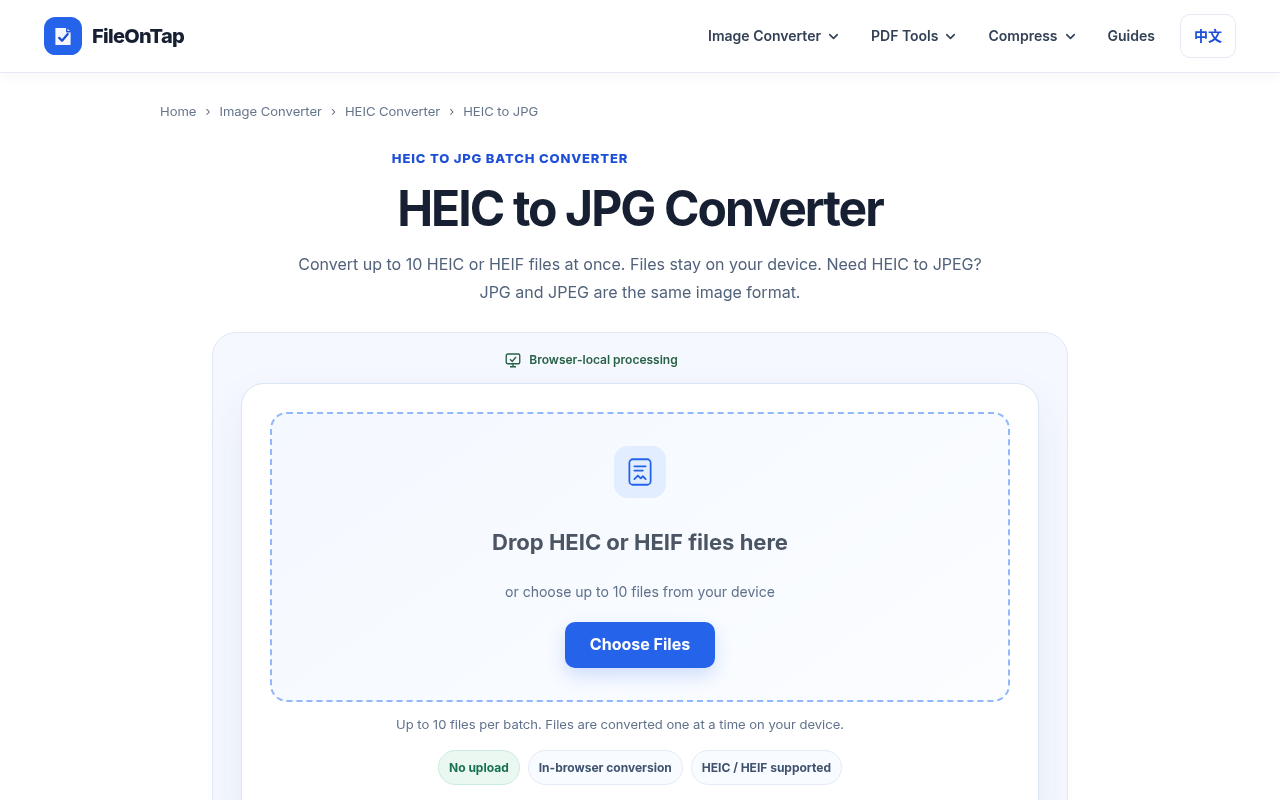
FileOnTap is a free browser-based file converter for HEIC, JPG, PNG, WebP, and PDF workflows that keeps supported files on your device.
Overview
Overview
FileOnTap is a free online file converter focused on everyday image and PDF tasks. It runs directly in a compatible browser and processes supported files locally, so selected files are not uploaded to a FileOnTap conversion server. The platform covers HEIC/HEIF, JPG/JPEG, PNG, WebP, and PDF workflows: convert iPhone HEIC photos to JPG, PNG, or WebP; convert WebP, PNG, and JPG between formats; turn images into PDF documents; render PDF pages as JPG or PNG; compress images or PDFs; and use PDF tools such as merge, split, and compress. No account is required, and the current image and PDF tools are free to use. FileOnTap is not a general-purpose video, audio, or office-document converter.
Key Features
- Browser-local processing: supported conversions run in the browser, keeping source files on the user’s device instead of sending them to a conversion server.
- Image conversion: HEIC to JPG, HEIC to PNG, HEIC to WebP, WebP to PNG, WebP to JPG, PNG to JPG, JPG to HEIC, PNG to HEIC, and WebP to HEIC.
- HEIC/HEIF support: makes iPhone and Apple-format photos easier to share, edit, upload, or archive.
- PDF creation: JPG to PDF, PNG to PDF, WebP to PDF, and HEIC to PDF for document-style sharing, printing, or submission.
- PDF to image: PDF to JPG and PDF to PNG, with selected PDF pages rendered as images.
- PDF organization and compression: merge PDF, split PDF, and compress PDF tools are available in the PDF tools menu.
- Image compression: compress JPG, PNG, and WebP locally, with adjustable JPG and WebP quality and displayed original size, compressed size, and reduction.
- No account needed: open a tool, choose a supported file, convert or compress it, and download the result.
- Clear limits: HEIC and common image batch converters and the image compressor accept up to 10 files per batch; JPG to PDF accepts up to 30 images; other PDF tools have page- and file-specific limits described on their pages.
- Guides and focused workflows: FileOnTap includes conversion guides and task-specific tools for image conversion, PDF conversion, and compression.
- Cross-platform browser access: works on desktop and many mobile/tablet browsers, though support varies by browser, memory, file format, and device.
Target Users
- iPhone and iPad users who need to convert HEIC/HEIF photos into shareable JPG, PNG, or WebP files.
- Privacy-conscious users who prefer browser-local processing and do not want to upload personal images or PDFs to a conversion server.
- Social media managers, marketers, creators, and everyday users who need quick image format conversion for posting, uploading, or editing.
- Students, office workers, admins, and job seekers who need to turn images into PDFs for assignments, forms, applications, or printing.
- Designers and web users who need to convert WebP, PNG, and JPG files for editing, compatibility, or website workflows.
- Users who want free, no-signup utilities without installing desktop software.
- People who need basic image compression with visible before/after size feedback.
- Users looking for focused image and PDF tools rather than a broad video, audio, or office-document converter.
Unique Selling Points
- No-upload workflow: supported conversion operations process selected source files locally in the browser, not on a FileOnTap conversion server.
- Free and account-free: the current image and PDF tools can be used without creating a FileOnTap account.
- HEIC-friendly: directly addresses a common Apple photo compatibility problem by converting HEIC/HEIF into JPG, PNG, WebP, or PDF.
- Focused tool collection: each tool is designed around a clear image, compression, or PDF task instead of trying to do everything.
- Transparent compression feedback: the image compressor shows original size, compressed size, and reduction before download.
- Browser-based convenience: no installation needed; works across operating systems through a compatible browser.
- Practical PDF workflows: image-to-PDF, PDF-to-image, merge, split, and compress tools cover common document tasks.
- Clear caveats: batch limits, approximate compression targets, and browser/device dependency are disclosed rather than hidden.
Pros and Cons
Pros
- Strong privacy positioning for supported files because conversions happen locally in the browser.
- Free to use with no account requirement for current image and PDF tools.
- Supports important formats: HEIC/HEIF, JPG/JPEG, PNG, WebP, and PDF.
- Handles popular conversions such as HEIC to JPG, WebP to PNG, and JPG to PDF.
- Includes image compression with visible size-reduction information.
- Offers PDF tools beyond conversion, including merge, split, and compress.
- No software installation required.
- Useful for quick tasks on desktop or compatible mobile browsers.
- Batch limits are practical for everyday use: up to 10 image files in many image tools, up to 30 images for JPG to PDF.
- Clear that it is not a general-purpose video, audio, or office-document converter.
Cons
- Not a full editing suite; it focuses on conversion, compression, and basic PDF operations.
- Does not support video, audio, or office-document conversion.
- Performance depends on browser, available memory, file format, and device capability.
- Mobile and tablet support varies by browser and device.
- Image compression to an exact KB target is approximate and not guaranteed.
- Batch, page, and file limits differ across tools and may be restrictive for very large jobs.
- Loading site resources and optional basic analytics can still involve network requests.
- No cloud storage, collaboration, or advanced document-editing features are described.
- Output quality and file size depend on the source file, encoding settings, and browser implementation.
- PDF tools have their own page- and file-specific limits that users must check individually.
Top Features
- Browser-local file conversion with no upload to a conversion server for supported operations
- HEIC, HEIF, JPG, PNG, WebP, and PDF workflow support
- Image conversion, image compression, PDF creation, PDF-to-image, merge, split, and compress tools
FAQ
Traffic Analysis
Monthly Visits
--
Avg. Duration
--
Global Rank
--
Bounce Rate
--
Alternatives to FileOnTap HEIC to PNG Converter

Unplain
Unplain converts docs and AI drafts (Word, Markdown, plain text, ChatGPT/Claude output) into branded, publish-ready PDFs like ebooks and lead magnets.

PageTranslate.ai
AI-powered translation for PDF, DOCX, EPUB, and images in 50+ languages, with exact pricing before you pay and formatting preserved.
Transpic
Free AI image translator that converts text inside photos, screenshots, manga and documents into 60+ languages while preserving the original layout.
Photo to Excel
Photo to Excel is an online converter that transforms table photos and screenshots into editable .xlsx files, merging multiple images and removing duplicates.
MarkFlow
Free online converter transforms Markdown (.md) to Word (.docx) instantly, preserving complex elements like LaTeX and Mermaid diagrams.

MarkdownCo
A free online tool to convert between Markdown, PDF, Word, and HTML. Renders LaTeX, Mermaid, and GFM accurately.

Messy2Sheet
Messy2Sheet converts messy documents like PDFs, scans, and spreadsheets into usable Excel or CSV files by letting users define the desired table structure.

JPG to Excel Converter
Convert JPG images to editable Excel spreadsheets with AI-powered accuracy, online verification, and easy editing.